

📱 旧域名数据迁移
当网站域名失效或无法访问时,你可以通过此方法从 Android 手机 APP 中提取本地存储的 IndexedDB 数据,并导入到新站点。0️⃣ 准备工作
电脑端
安装 adb
- Windows
- macOS
- Linux
- 下载 SDK Platform Tools
- 解压到
C:\platform-tools - 添加到系统环境变量(见下方详细步骤)
Windows 配置环境变量
1
打开运行对话框
按 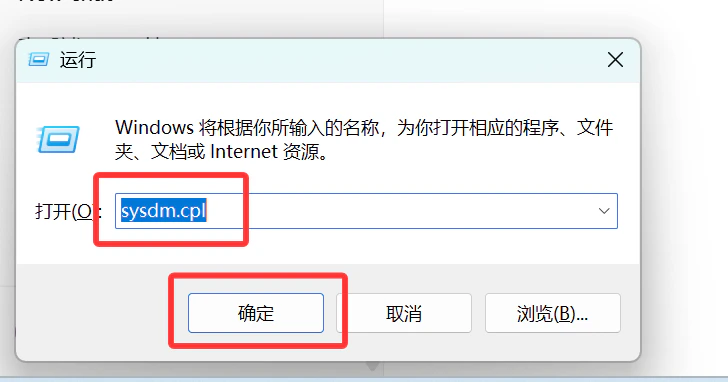
Win + R,输入 sysdm.cpl,点击确定2
打开系统属性
选择「高级」标签页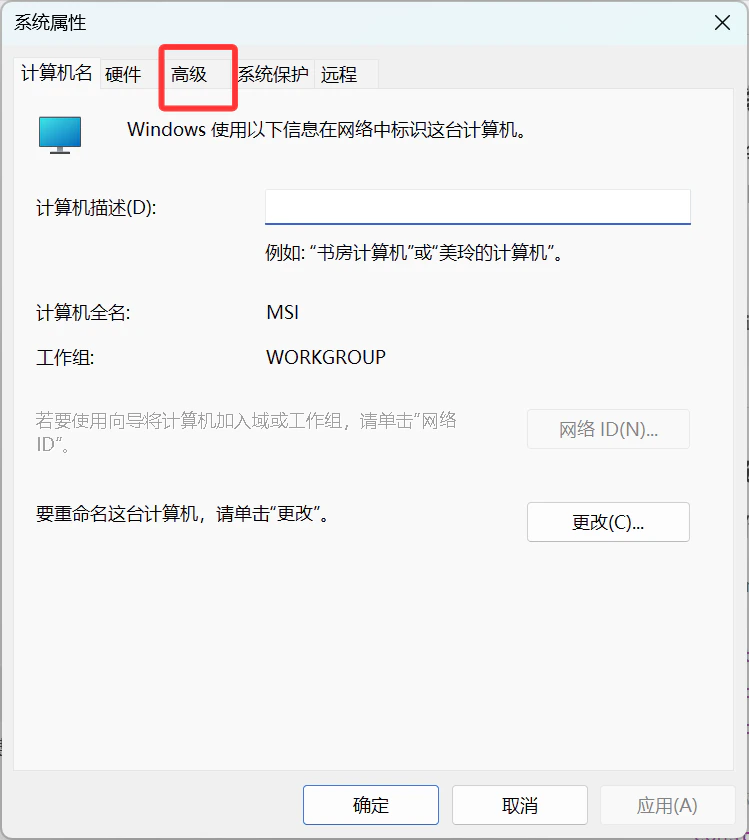
3
点击「环境变量」
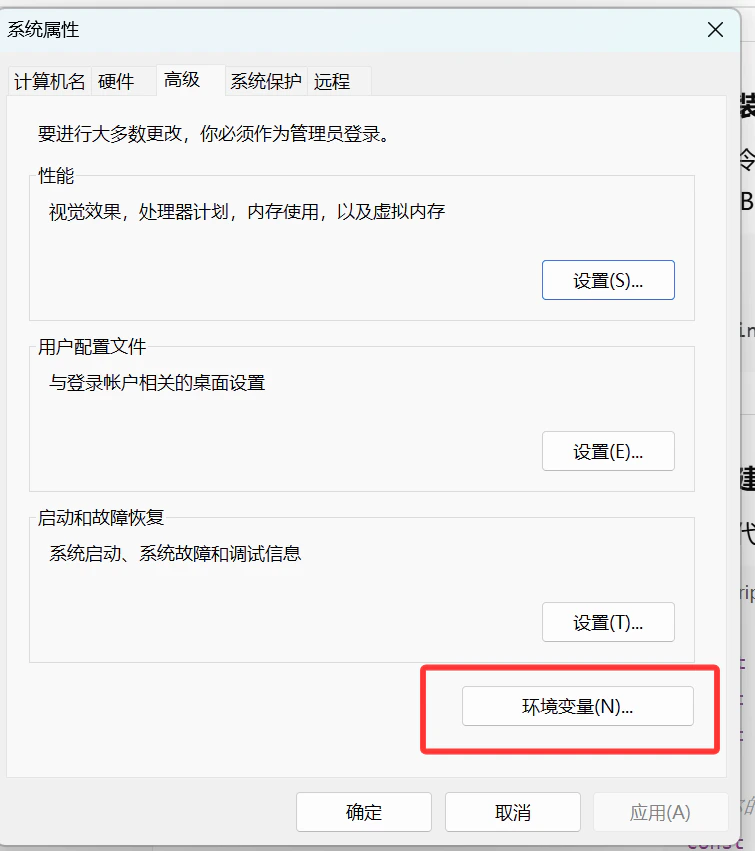
4
编辑 Path 变量
在「系统变量」中找到 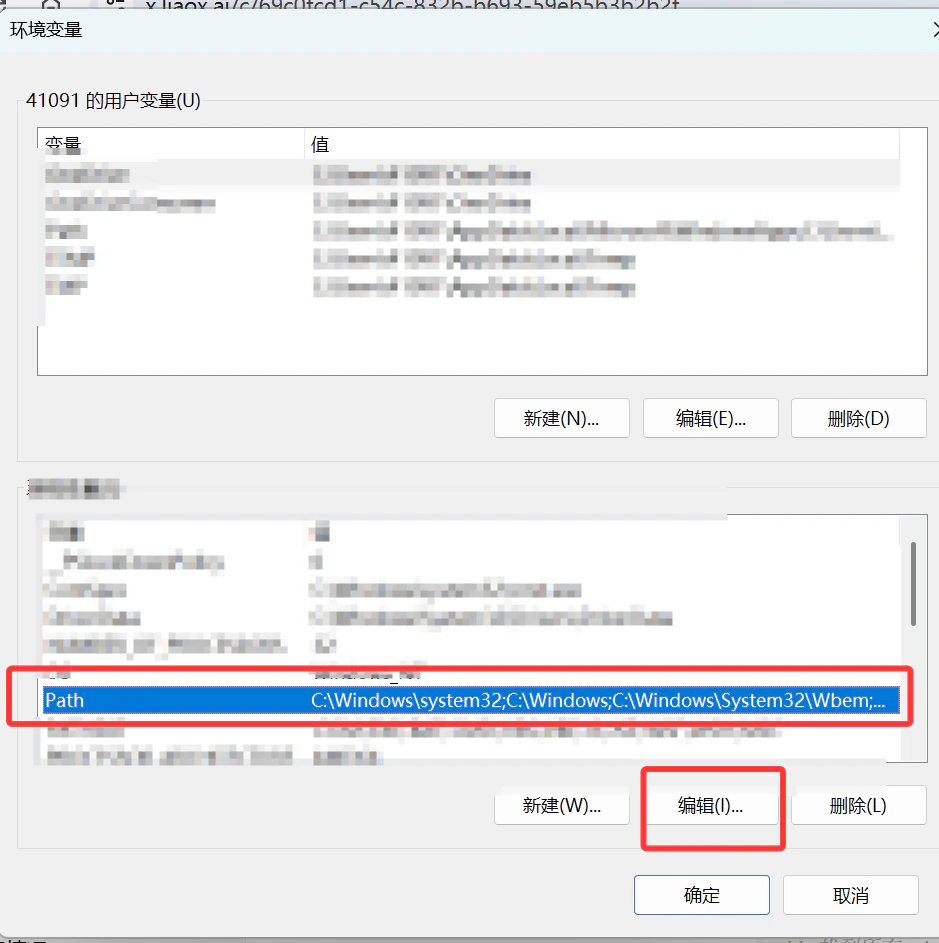
Path,点击「编辑」5
添加 adb 路径
点击「新建」,输入 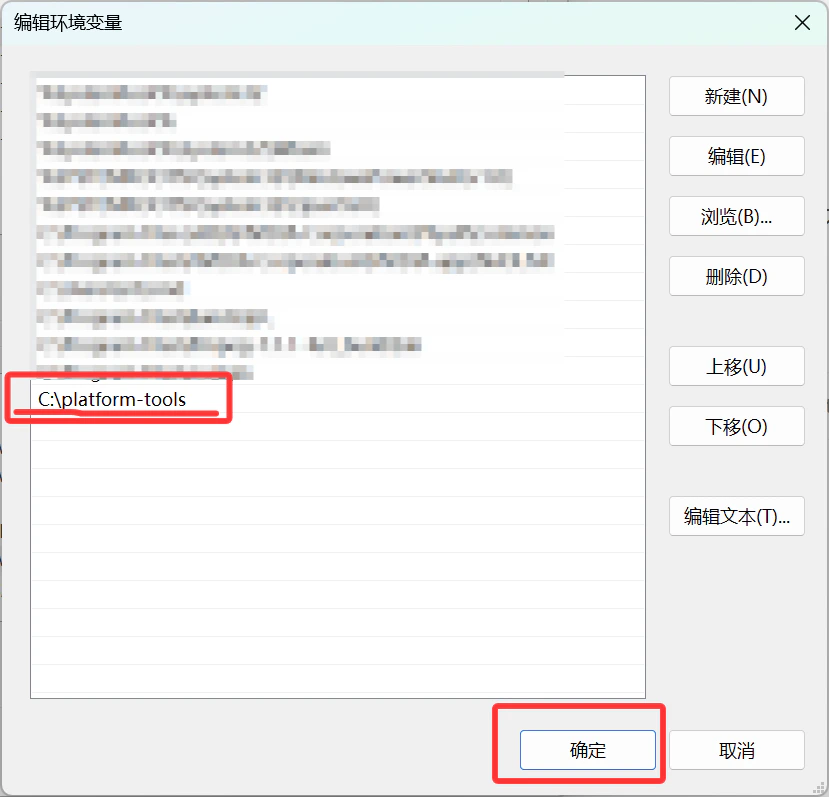
C:\platform-tools,点击确定手机端
开启开发者选项和 USB 调试
- 打开「设置」→「关于手机」
- 连续点击「版本号」7 次 → 成为开发者
- 返回「设置」→「开发者选项」→ 打开「USB 调试」
- 用 USB 数据线连接手机到电脑
1️⃣ 检查 adb 连接
验证 adb 安装
连接手机
显示
device 表示连接成功2️⃣ 查找 IndexedDB 数据
进入 adb shell
切换到应用用户
导航到 IndexedDB 目录
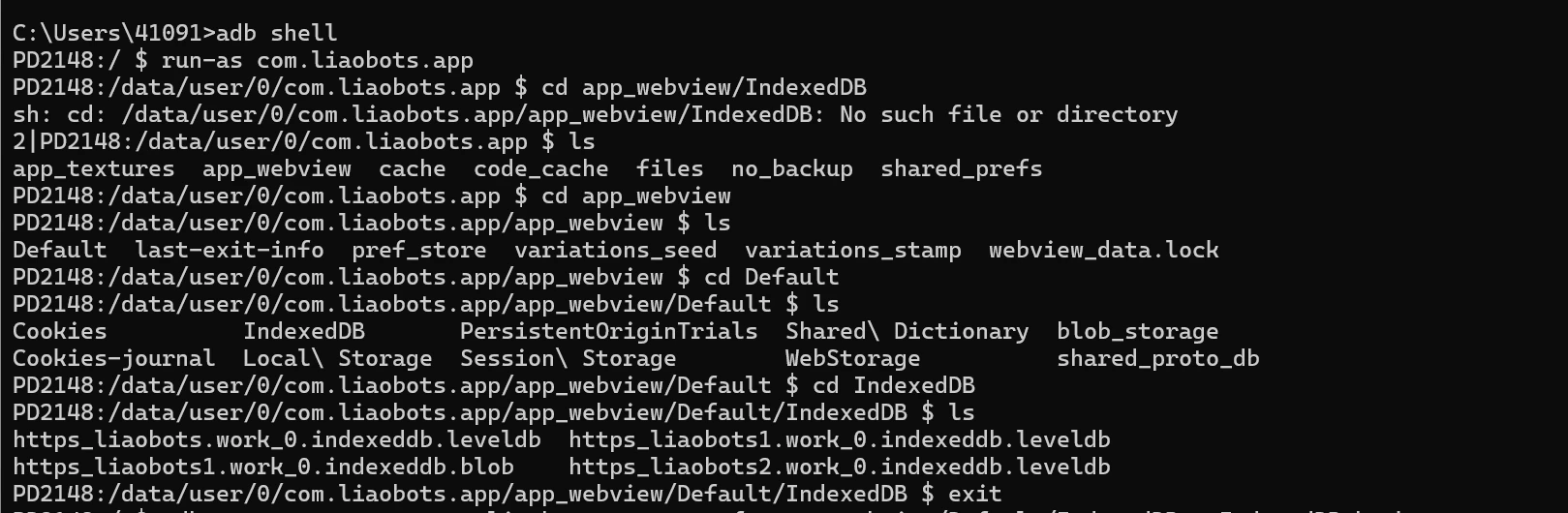
这些
.indexeddb.leveldb 文件夹就是你要的数据退出 adb shell
3️⃣ 导出数据到电脑
在电脑终端(不是 adb shell)运行:
IndexedDB_backup.tar 文件。
解压文件
- Windows
- macOS / Linux
4️⃣ 恢复数据到新站点
- 访问新站点的数据恢复页面(如
/downloadjson) - 点击「选择 IndexedDB 文件夹」
- 选择解压得到的
.indexeddb.leveldb文件夹
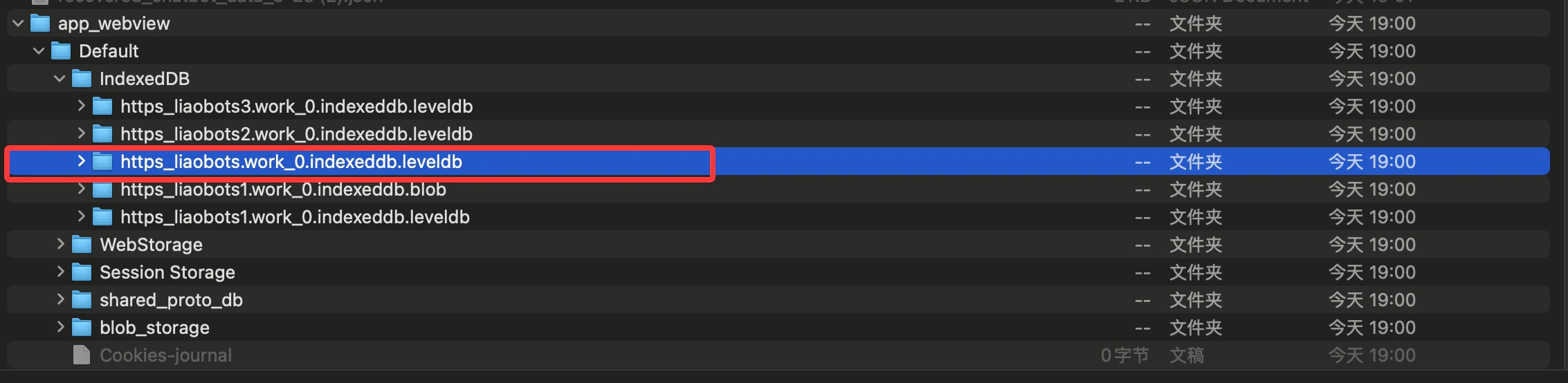
选择 https_xxx.indexeddb.leveldb 文件夹
- 等待解析完成,下载 JSON 文件
- 在新站点导入 JSON 文件即可恢复数据
❓ 常见问题
run-as 命令报错 'Package not debuggable'
run-as 命令报错 'Package not debuggable'
说明 APK 是正式版,不是 debug 版。需要使用 debug 版 APK 或者 root 手机。
导出的 tar 文件是空的
导出的 tar 文件是空的
检查路径是否正确。可以先用
adb shell 进入手机确认文件存在。Windows 上 tar 命令不存在
Windows 上 tar 命令不存在
Windows 10 以上版本自带 tar。如果没有,可以使用 7-Zip 解压。