> ## Documentation Index
> Fetch the complete documentation index at: https://liaobots.mintlify.site/llms.txt
> Use this file to discover all available pages before exploring further.
# Data Migration from Old Domain
> Export IndexedDB data from Android APP and restore to new site
# 📱 Data Migration from Old Domain
When a website domain becomes unavailable, you can extract locally stored IndexedDB data from the Android APP and import it to a new site.
***
## 0️⃣ Prerequisites
### Computer
| Tool | Description |
| ------------ | -------------------------------------- |
| **OS** | Windows / macOS / Linux |
| **adb** | Android Debug Bridge |
| **Terminal** | Command Prompt / PowerShell / Terminal |
#### Install adb
1. Download [SDK Platform Tools](https://developer.android.com/studio/releases/platform-tools)
2. Extract to `C:\platform-tools`
3. Add to system PATH (see detailed steps below)
```bash theme={null}
brew install android-platform-tools
```
```bash theme={null}
sudo apt install adb
```
***
### Windows: Configure Environment Variables
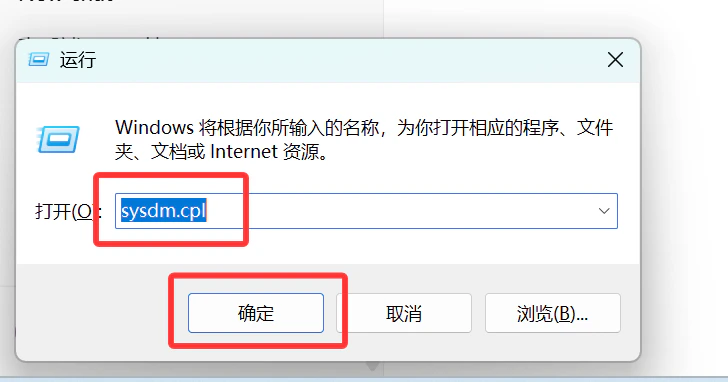
Press `Win + R`, type `sysdm.cpl`, click OK
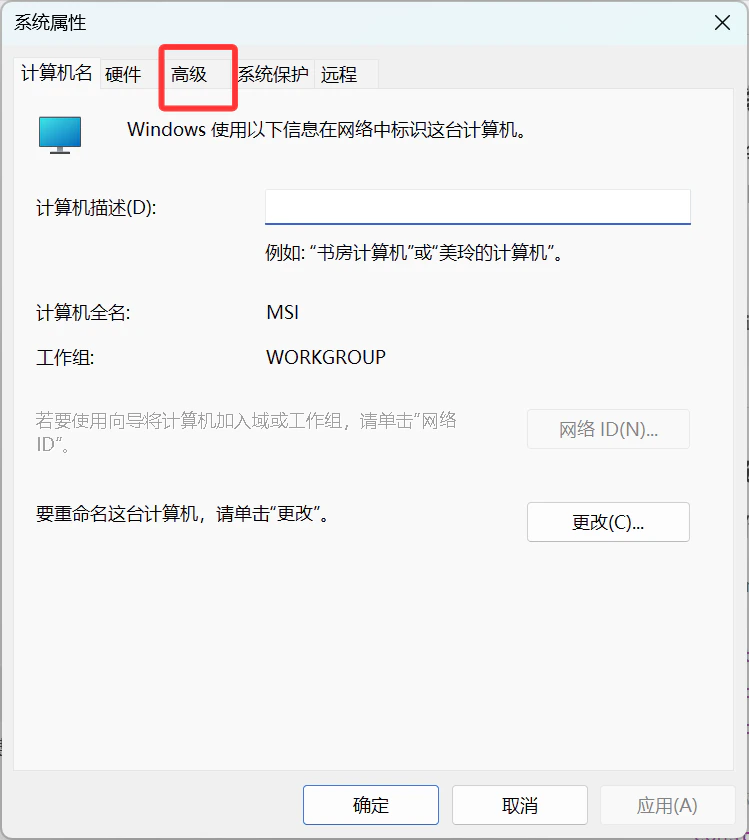
 Select the "Advanced" tab
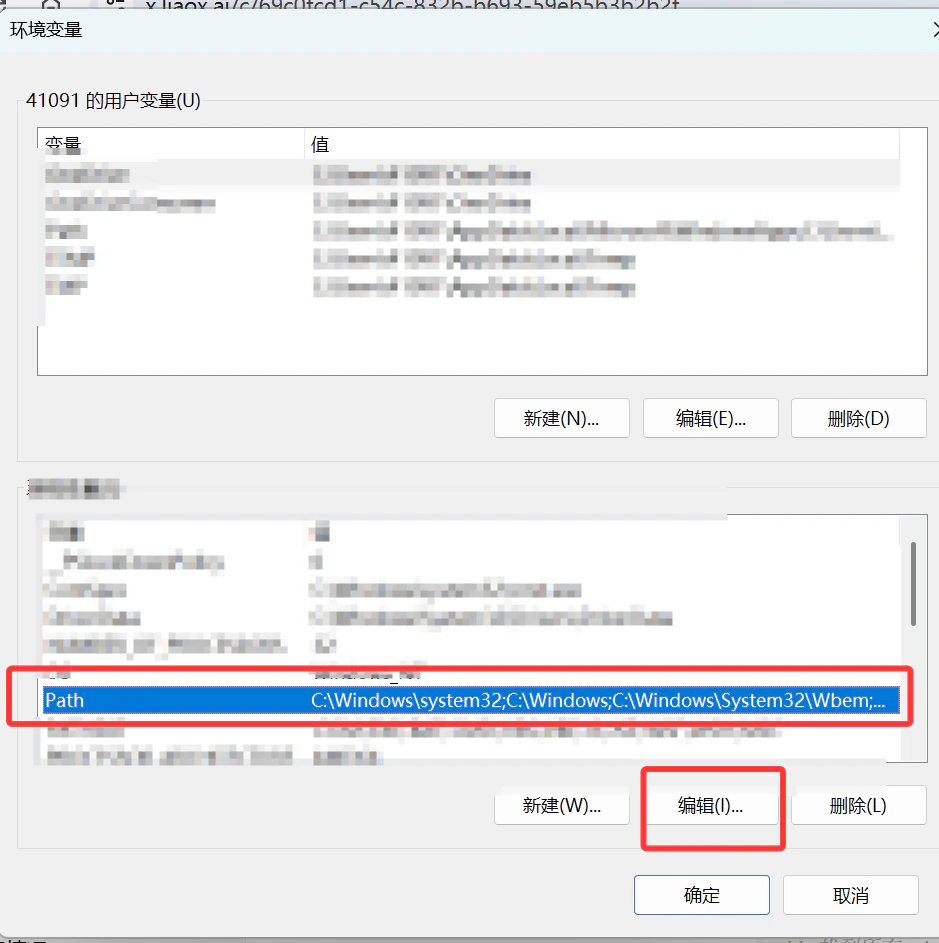
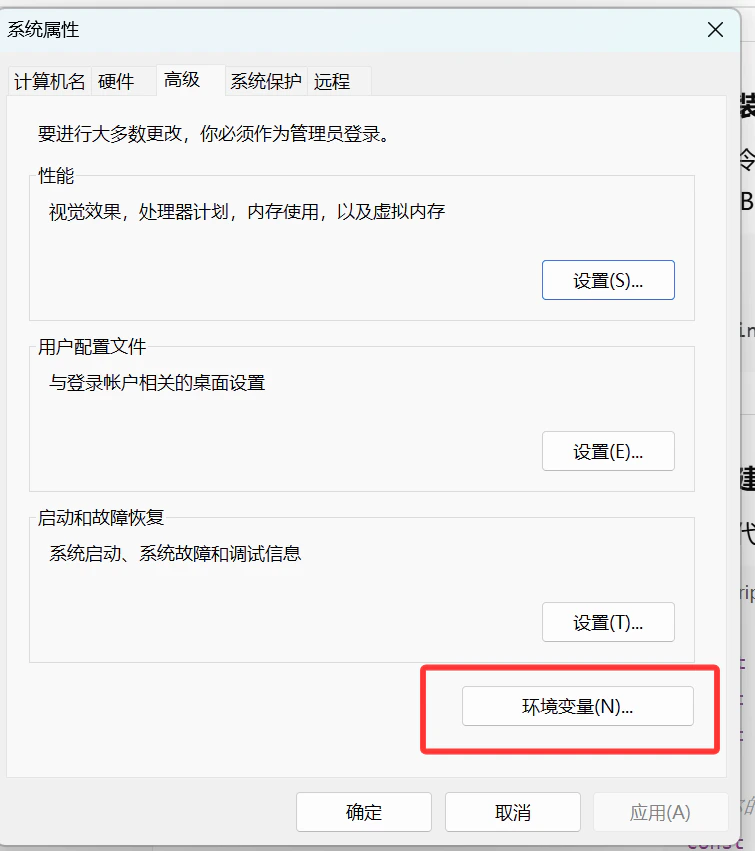 Find `Path` in "System variables", click "Edit"
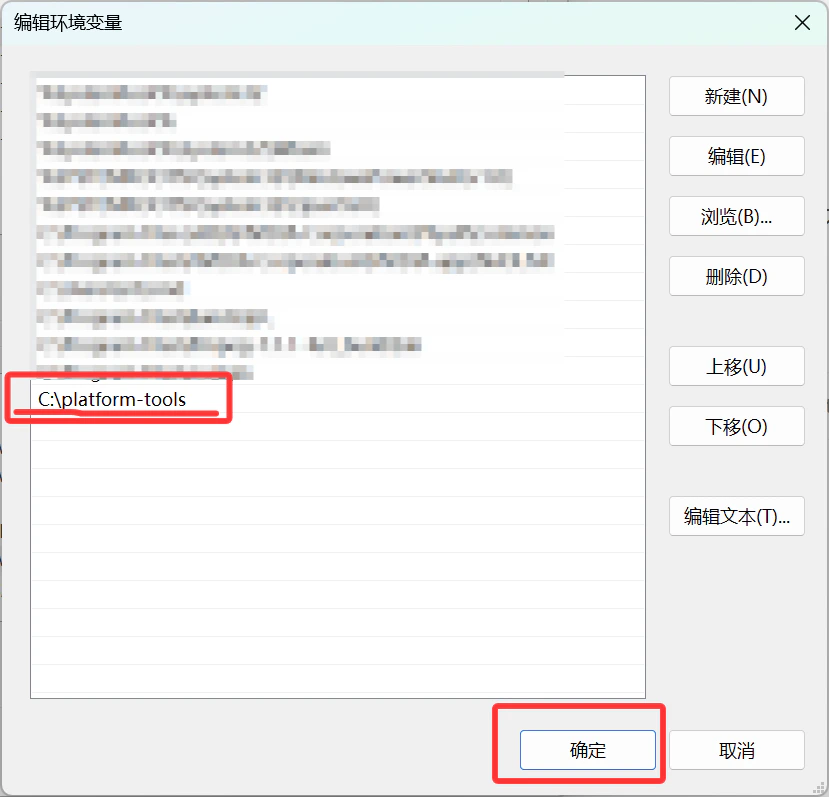
 Click "New", enter `C:\platform-tools`, click OK
 ***
### Phone
| Requirement | Description |
| ----------------- | ---------------------------------------------------- |
| **Android Phone** | With target APP installed (e.g., `com.liaobots.app`) |
| **USB Debugging** | Enabled (see steps below) |
| **USB Cable** | Connect phone to computer |
#### Enable Developer Options and USB Debugging
1. Go to "Settings" → "About Phone"
2. Tap "Build Number" 7 times → Become a developer
3. Go back to "Settings" → "Developer Options" → Enable "USB Debugging"
4. Connect phone to computer with USB cable
***
## 1️⃣ Check adb Connection
### Verify adb Installation
```bash theme={null}
adb version
```
Shows version number if successful:
```
Android Debug Bridge version 1.0.41
```
### Connect Phone
```bash theme={null}
adb devices
```
Phone will show authorization prompt → **Tap "Allow"**
Output example:
```
List of devices attached
ABCDEF12345 device
```
Shows `device` means connection successful
***
## 2️⃣ Find IndexedDB Data
### Enter adb shell
```bash theme={null}
adb shell
```
### Switch to App User
```bash theme={null}
run-as com.liaobots.app
```
This command only works for **debug version** APK. Release APK requires root access.
### Navigate to IndexedDB Directory
```bash theme={null}
cd app_webview/Default/IndexedDB
ls
```
You'll see output like:
```
https_liaobots.work_0.indexeddb.leveldb
https_liaobots1.work_0.indexeddb.leveldb
https_liaobots2.work_0.indexeddb.leveldb
```
***
### Phone
| Requirement | Description |
| ----------------- | ---------------------------------------------------- |
| **Android Phone** | With target APP installed (e.g., `com.liaobots.app`) |
| **USB Debugging** | Enabled (see steps below) |
| **USB Cable** | Connect phone to computer |
#### Enable Developer Options and USB Debugging
1. Go to "Settings" → "About Phone"
2. Tap "Build Number" 7 times → Become a developer
3. Go back to "Settings" → "Developer Options" → Enable "USB Debugging"
4. Connect phone to computer with USB cable
***
## 1️⃣ Check adb Connection
### Verify adb Installation
```bash theme={null}
adb version
```
Shows version number if successful:
```
Android Debug Bridge version 1.0.41
```
### Connect Phone
```bash theme={null}
adb devices
```
Phone will show authorization prompt → **Tap "Allow"**
Output example:
```
List of devices attached
ABCDEF12345 device
```
Shows `device` means connection successful
***
## 2️⃣ Find IndexedDB Data
### Enter adb shell
```bash theme={null}
adb shell
```
### Switch to App User
```bash theme={null}
run-as com.liaobots.app
```
This command only works for **debug version** APK. Release APK requires root access.
### Navigate to IndexedDB Directory
```bash theme={null}
cd app_webview/Default/IndexedDB
ls
```
You'll see output like:
```
https_liaobots.work_0.indexeddb.leveldb
https_liaobots1.work_0.indexeddb.leveldb
https_liaobots2.work_0.indexeddb.leveldb
```
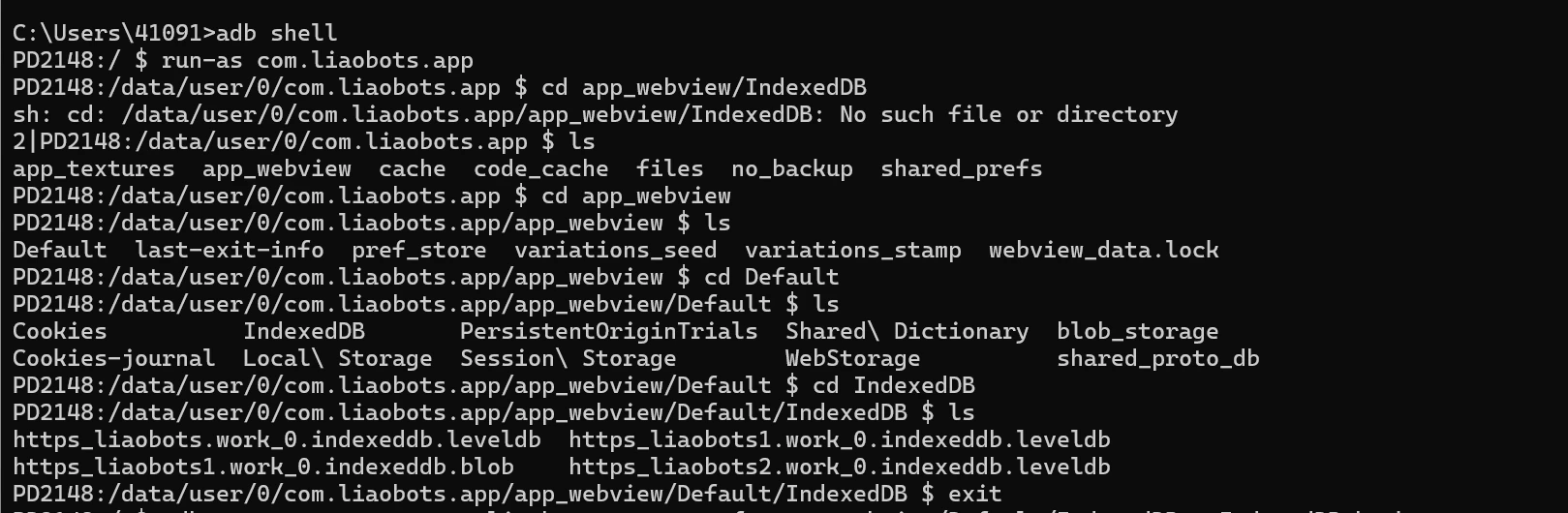 These `.indexeddb.leveldb` folders contain your data
### Exit adb shell
```bash theme={null}
exit
exit
```
***
## 3️⃣ Export Data to Computer
Run in computer terminal (not adb shell):
```bash theme={null}
adb exec-out run-as com.liaobots.app tar cf - app_webview/Default/IndexedDB > IndexedDB_backup.tar
```
These `.indexeddb.leveldb` folders contain your data
### Exit adb shell
```bash theme={null}
exit
exit
```
***
## 3️⃣ Export Data to Computer
Run in computer terminal (not adb shell):
```bash theme={null}
adb exec-out run-as com.liaobots.app tar cf - app_webview/Default/IndexedDB > IndexedDB_backup.tar
```
 This creates `IndexedDB_backup.tar` in current directory.
### Extract File
```bash theme={null}
tar -xf IndexedDB_backup.tar
```
```bash theme={null}
tar -xf IndexedDB_backup.tar
```
Extracted directory structure:
```
app_webview/
└── Default/
└── IndexedDB/
├── https_liaobots.work_0.indexeddb.leveldb/
├── https_liaobots1.work_0.indexeddb.leveldb/
└── ...
```
***
## 4️⃣ Restore Data to New Site
1. Visit the data recovery page on new site (e.g., `/downloadjson`)
2. Click "Select IndexedDB Folder"
3. Select the extracted `.indexeddb.leveldb` folder
This creates `IndexedDB_backup.tar` in current directory.
### Extract File
```bash theme={null}
tar -xf IndexedDB_backup.tar
```
```bash theme={null}
tar -xf IndexedDB_backup.tar
```
Extracted directory structure:
```
app_webview/
└── Default/
└── IndexedDB/
├── https_liaobots.work_0.indexeddb.leveldb/
├── https_liaobots1.work_0.indexeddb.leveldb/
└── ...
```
***
## 4️⃣ Restore Data to New Site
1. Visit the data recovery page on new site (e.g., `/downloadjson`)
2. Click "Select IndexedDB Folder"
3. Select the extracted `.indexeddb.leveldb` folder
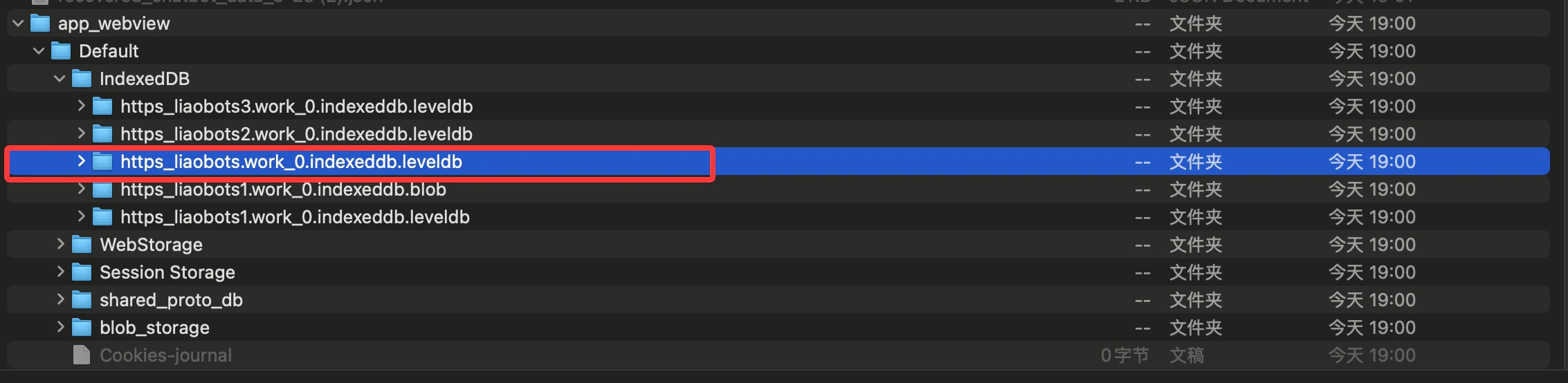 Make sure to select the `.indexeddb.leveldb` folder, NOT the `.indexeddb.blob` folder
4. Wait for parsing to complete, download JSON file
5. Import JSON file to new site to restore data
***
## ❓ FAQ
The APK is a release version, not debug. You need a debug APK or root access.
You didn't tap "Allow" on phone. Check for authorization popup on phone screen.
Check if path is correct. Use `adb shell` to verify files exist on phone first.
Windows 10+ includes tar. If not available, use 7-Zip to extract.
***
## 📝 Command Cheatsheet
| Step | Command |
| ------------------ | ---------------------------------------------------------------------------------------------------- |
| Check adb version | `adb version` |
| List devices | `adb devices` |
| Enter shell | `adb shell` |
| Switch to app user | `run-as com.liaobots.app` |
| View IndexedDB | `ls app_webview/Default/IndexedDB` |
| Export data | `adb exec-out run-as com.liaobots.app tar cf - app_webview/Default/IndexedDB > IndexedDB_backup.tar` |
| Extract | `tar -xf IndexedDB_backup.tar` |
Make sure to select the `.indexeddb.leveldb` folder, NOT the `.indexeddb.blob` folder
4. Wait for parsing to complete, download JSON file
5. Import JSON file to new site to restore data
***
## ❓ FAQ
The APK is a release version, not debug. You need a debug APK or root access.
You didn't tap "Allow" on phone. Check for authorization popup on phone screen.
Check if path is correct. Use `adb shell` to verify files exist on phone first.
Windows 10+ includes tar. If not available, use 7-Zip to extract.
***
## 📝 Command Cheatsheet
| Step | Command |
| ------------------ | ---------------------------------------------------------------------------------------------------- |
| Check adb version | `adb version` |
| List devices | `adb devices` |
| Enter shell | `adb shell` |
| Switch to app user | `run-as com.liaobots.app` |
| View IndexedDB | `ls app_webview/Default/IndexedDB` |
| Export data | `adb exec-out run-as com.liaobots.app tar cf - app_webview/Default/IndexedDB > IndexedDB_backup.tar` |
| Extract | `tar -xf IndexedDB_backup.tar` |