> ## Documentation Index
> Fetch the complete documentation index at: https://liaobots.mintlify.site/llms.txt
> Use this file to discover all available pages before exploring further.
# 旧域名数据迁移
> 从 Android APP 导出 IndexedDB 数据并恢复到新站点
# 📱 旧域名数据迁移
当网站域名失效或无法访问时,你可以通过此方法从 Android 手机 APP 中提取本地存储的 IndexedDB 数据,并导入到新站点。
***
## 0️⃣ 准备工作
### 电脑端
| 工具 | 说明 |
| ---------- | ----------------------------- |
| **操作系统** | Windows / macOS / Linux |
| **adb 工具** | Android Debug Bridge |
| **终端** | 命令提示符 / PowerShell / Terminal |
#### 安装 adb
1. 下载 [SDK Platform Tools](https://developer.android.com/studio/releases/platform-tools)
2. 解压到 `C:\platform-tools`
3. 添加到系统环境变量(见下方详细步骤)
```bash theme={null}
brew install android-platform-tools
```
```bash theme={null}
sudo apt install adb
```
***
### Windows 配置环境变量
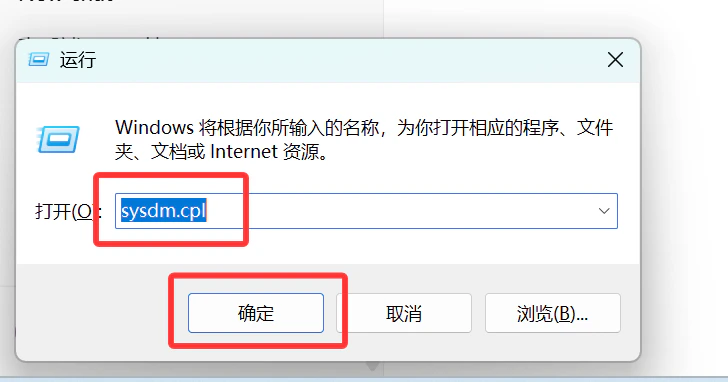
按 `Win + R`,输入 `sysdm.cpl`,点击确定
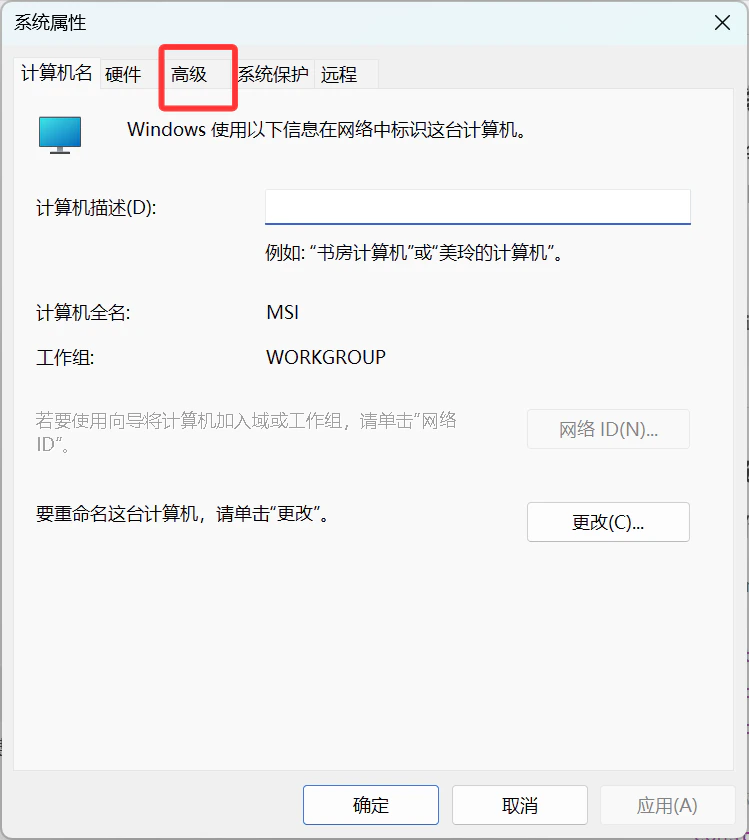
 选择「高级」标签页
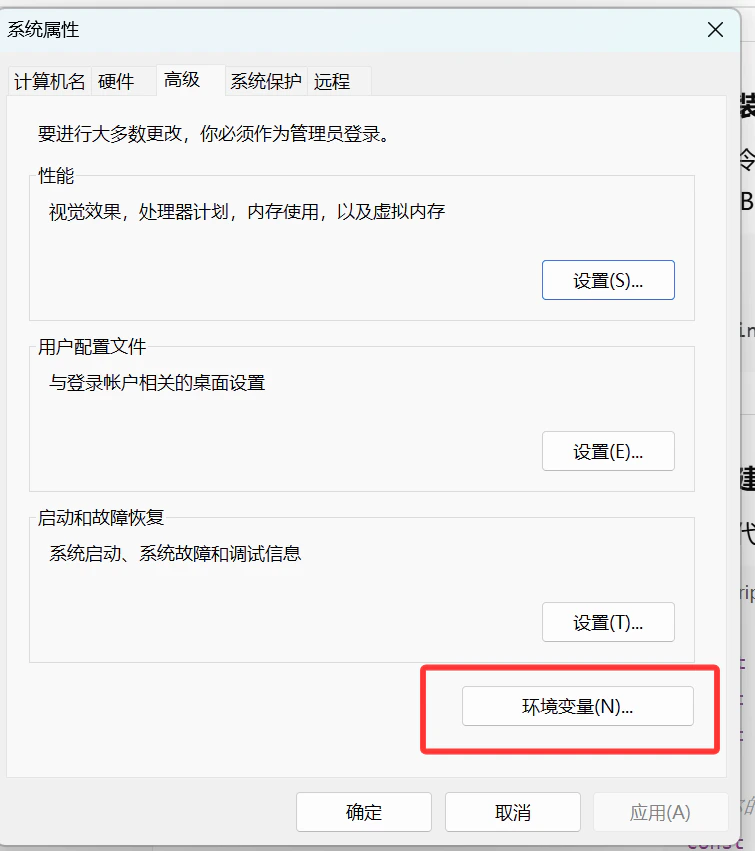 在「系统变量」中找到 `Path`,点击「编辑」
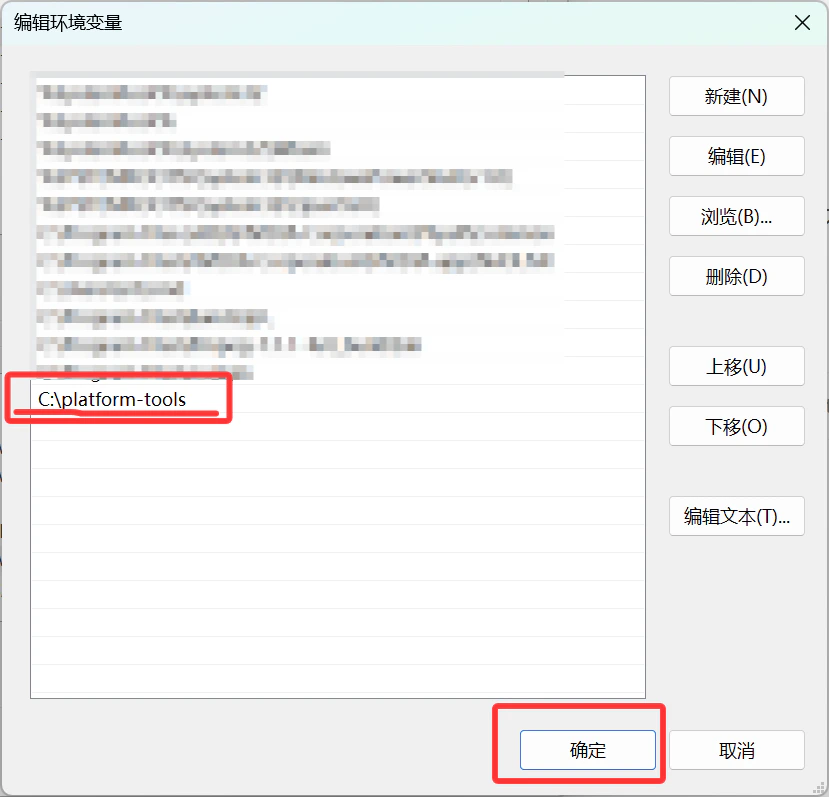
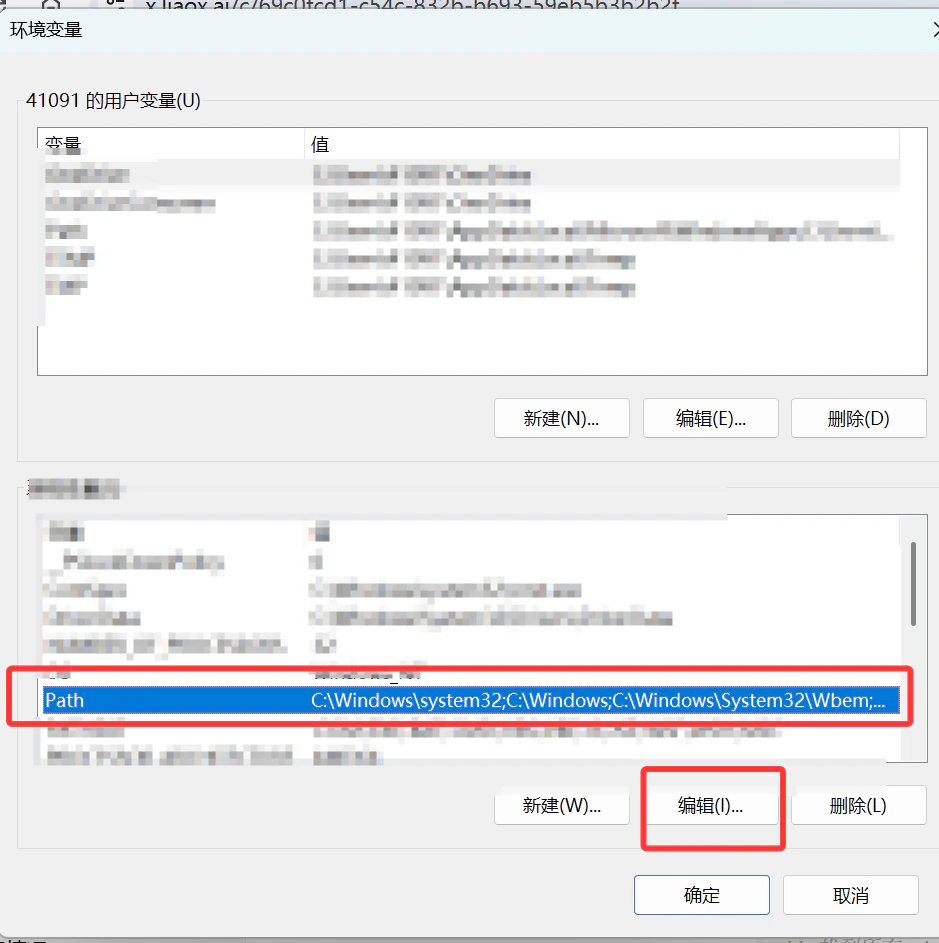 点击「新建」,输入 `C:\platform-tools`,点击确定
 ***
### 手机端
| 要求 | 说明 |
| -------------- | ------------------------------- |
| **Android 手机** | 已安装目标 APP(如 `com.liaobots.app`) |
| **开启 USB 调试** | 见下方步骤 |
| **USB 数据线** | 连接手机和电脑 |
#### 开启开发者选项和 USB 调试
1. 打开「设置」→「关于手机」
2. 连续点击「版本号」7 次 → 成为开发者
3. 返回「设置」→「开发者选项」→ 打开「USB 调试」
4. 用 USB 数据线连接手机到电脑
***
## 1️⃣ 检查 adb 连接
### 验证 adb 安装
```bash theme={null}
adb version
```
显示版本号说明安装成功,例如:
```
Android Debug Bridge version 1.0.41
```
### 连接手机
```bash theme={null}
adb devices
```
手机会弹出授权提示 → **点击「允许」**
输出示例:
```
List of devices attached
ABCDEF12345 device
```
显示 `device` 表示连接成功
***
## 2️⃣ 查找 IndexedDB 数据
### 进入 adb shell
```bash theme={null}
adb shell
```
### 切换到应用用户
```bash theme={null}
run-as com.liaobots.app
```
此命令仅对 **debug 版本** APK 有效。正式版 APK 需要 root 权限。
### 导航到 IndexedDB 目录
```bash theme={null}
cd app_webview/Default/IndexedDB
ls
```
你会看到类似这样的输出:
```
https_liaobots.work_0.indexeddb.leveldb
https_liaobots1.work_0.indexeddb.leveldb
https_liaobots2.work_0.indexeddb.leveldb
```
***
### 手机端
| 要求 | 说明 |
| -------------- | ------------------------------- |
| **Android 手机** | 已安装目标 APP(如 `com.liaobots.app`) |
| **开启 USB 调试** | 见下方步骤 |
| **USB 数据线** | 连接手机和电脑 |
#### 开启开发者选项和 USB 调试
1. 打开「设置」→「关于手机」
2. 连续点击「版本号」7 次 → 成为开发者
3. 返回「设置」→「开发者选项」→ 打开「USB 调试」
4. 用 USB 数据线连接手机到电脑
***
## 1️⃣ 检查 adb 连接
### 验证 adb 安装
```bash theme={null}
adb version
```
显示版本号说明安装成功,例如:
```
Android Debug Bridge version 1.0.41
```
### 连接手机
```bash theme={null}
adb devices
```
手机会弹出授权提示 → **点击「允许」**
输出示例:
```
List of devices attached
ABCDEF12345 device
```
显示 `device` 表示连接成功
***
## 2️⃣ 查找 IndexedDB 数据
### 进入 adb shell
```bash theme={null}
adb shell
```
### 切换到应用用户
```bash theme={null}
run-as com.liaobots.app
```
此命令仅对 **debug 版本** APK 有效。正式版 APK 需要 root 权限。
### 导航到 IndexedDB 目录
```bash theme={null}
cd app_webview/Default/IndexedDB
ls
```
你会看到类似这样的输出:
```
https_liaobots.work_0.indexeddb.leveldb
https_liaobots1.work_0.indexeddb.leveldb
https_liaobots2.work_0.indexeddb.leveldb
```
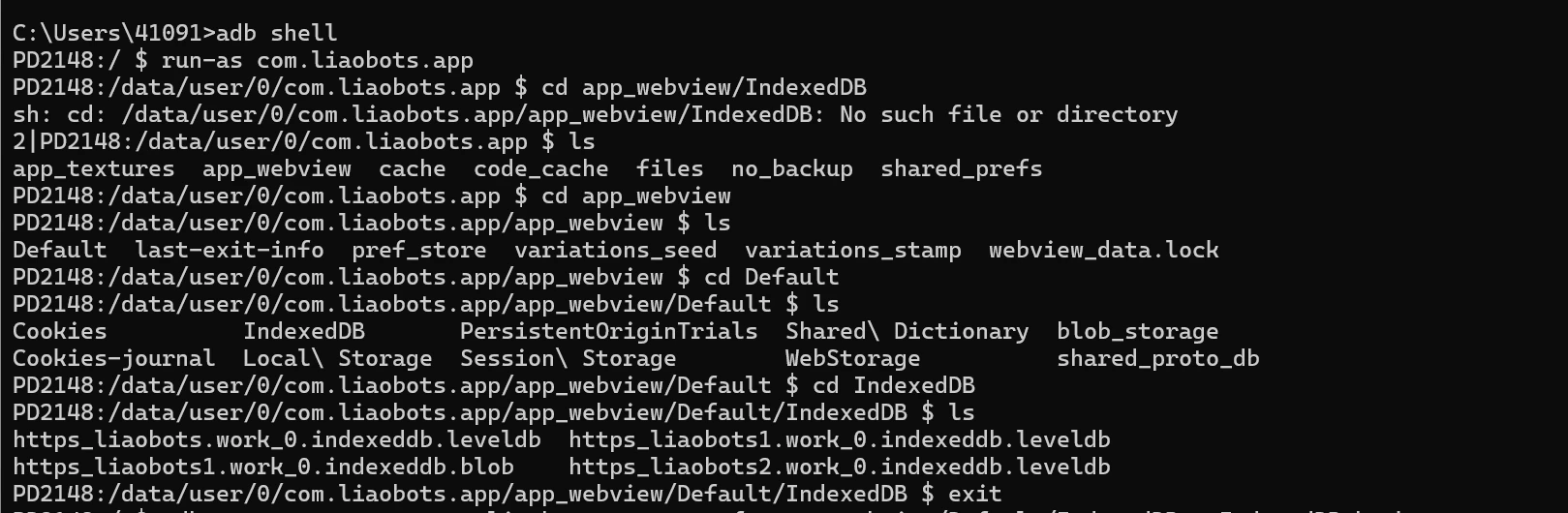 这些 `.indexeddb.leveldb` 文件夹就是你要的数据
### 退出 adb shell
```bash theme={null}
exit
exit
```
***
## 3️⃣ 导出数据到电脑
在电脑终端(不是 adb shell)运行:
```bash theme={null}
adb exec-out run-as com.liaobots.app tar cf - app_webview/Default/IndexedDB > IndexedDB_backup.tar
```
这些 `.indexeddb.leveldb` 文件夹就是你要的数据
### 退出 adb shell
```bash theme={null}
exit
exit
```
***
## 3️⃣ 导出数据到电脑
在电脑终端(不是 adb shell)运行:
```bash theme={null}
adb exec-out run-as com.liaobots.app tar cf - app_webview/Default/IndexedDB > IndexedDB_backup.tar
```
 这会在当前目录生成 `IndexedDB_backup.tar` 文件。
### 解压文件
```bash theme={null}
tar -xf IndexedDB_backup.tar
```
```bash theme={null}
tar -xf IndexedDB_backup.tar
```
解压后得到目录结构:
```
app_webview/
└── Default/
└── IndexedDB/
├── https_liaobots.work_0.indexeddb.leveldb/
├── https_liaobots1.work_0.indexeddb.leveldb/
└── ...
```
***
## 4️⃣ 恢复数据到新站点
1. 访问新站点的数据恢复页面(如 `/downloadjson`)
2. 点击「选择 IndexedDB 文件夹」
3. 选择解压得到的 `.indexeddb.leveldb` 文件夹
这会在当前目录生成 `IndexedDB_backup.tar` 文件。
### 解压文件
```bash theme={null}
tar -xf IndexedDB_backup.tar
```
```bash theme={null}
tar -xf IndexedDB_backup.tar
```
解压后得到目录结构:
```
app_webview/
└── Default/
└── IndexedDB/
├── https_liaobots.work_0.indexeddb.leveldb/
├── https_liaobots1.work_0.indexeddb.leveldb/
└── ...
```
***
## 4️⃣ 恢复数据到新站点
1. 访问新站点的数据恢复页面(如 `/downloadjson`)
2. 点击「选择 IndexedDB 文件夹」
3. 选择解压得到的 `.indexeddb.leveldb` 文件夹
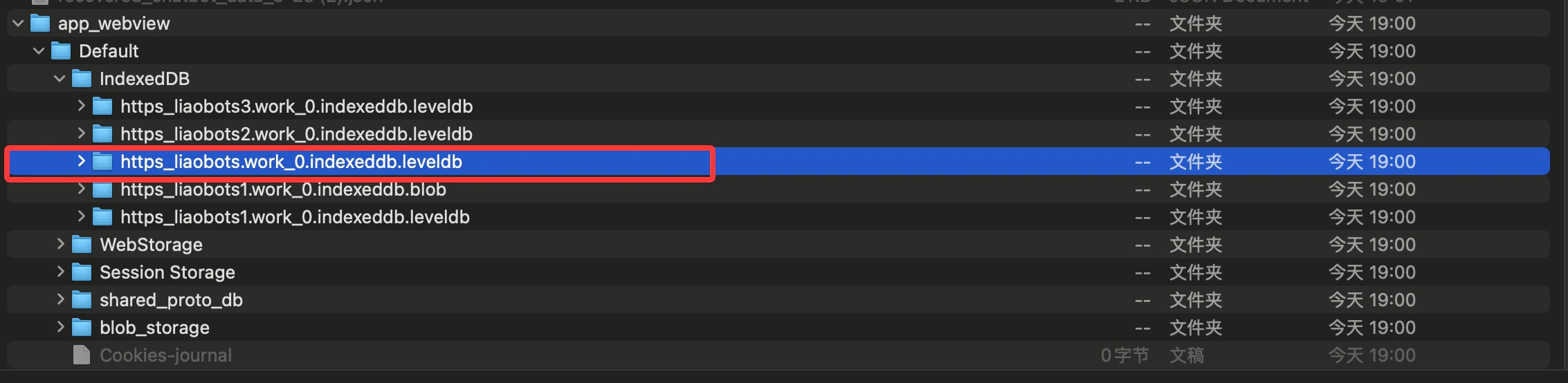 注意选择的是 `.indexeddb.leveldb` 结尾的文件夹,不是 `.indexeddb.blob` 文件夹
4. 等待解析完成,下载 JSON 文件
5. 在新站点导入 JSON 文件即可恢复数据
***
## ❓ 常见问题
说明 APK 是正式版,不是 debug 版。需要使用 debug 版 APK 或者 root 手机。
手机上没有点击「允许」授权。请检查手机屏幕上的授权弹窗。
检查路径是否正确。可以先用 `adb shell` 进入手机确认文件存在。
Windows 10 以上版本自带 tar。如果没有,可以使用 7-Zip 解压。
***
## 📝 命令速查表
| 步骤 | 命令 |
| ------------ | ---------------------------------------------------------------------------------------------------- |
| 检查 adb 版本 | `adb version` |
| 列出连接设备 | `adb devices` |
| 进入 shell | `adb shell` |
| 切换应用用户 | `run-as com.liaobots.app` |
| 查看 IndexedDB | `ls app_webview/Default/IndexedDB` |
| 导出数据 | `adb exec-out run-as com.liaobots.app tar cf - app_webview/Default/IndexedDB > IndexedDB_backup.tar` |
| 解压 | `tar -xf IndexedDB_backup.tar` |
注意选择的是 `.indexeddb.leveldb` 结尾的文件夹,不是 `.indexeddb.blob` 文件夹
4. 等待解析完成,下载 JSON 文件
5. 在新站点导入 JSON 文件即可恢复数据
***
## ❓ 常见问题
说明 APK 是正式版,不是 debug 版。需要使用 debug 版 APK 或者 root 手机。
手机上没有点击「允许」授权。请检查手机屏幕上的授权弹窗。
检查路径是否正确。可以先用 `adb shell` 进入手机确认文件存在。
Windows 10 以上版本自带 tar。如果没有,可以使用 7-Zip 解压。
***
## 📝 命令速查表
| 步骤 | 命令 |
| ------------ | ---------------------------------------------------------------------------------------------------- |
| 检查 adb 版本 | `adb version` |
| 列出连接设备 | `adb devices` |
| 进入 shell | `adb shell` |
| 切换应用用户 | `run-as com.liaobots.app` |
| 查看 IndexedDB | `ls app_webview/Default/IndexedDB` |
| 导出数据 | `adb exec-out run-as com.liaobots.app tar cf - app_webview/Default/IndexedDB > IndexedDB_backup.tar` |
| 解压 | `tar -xf IndexedDB_backup.tar` |